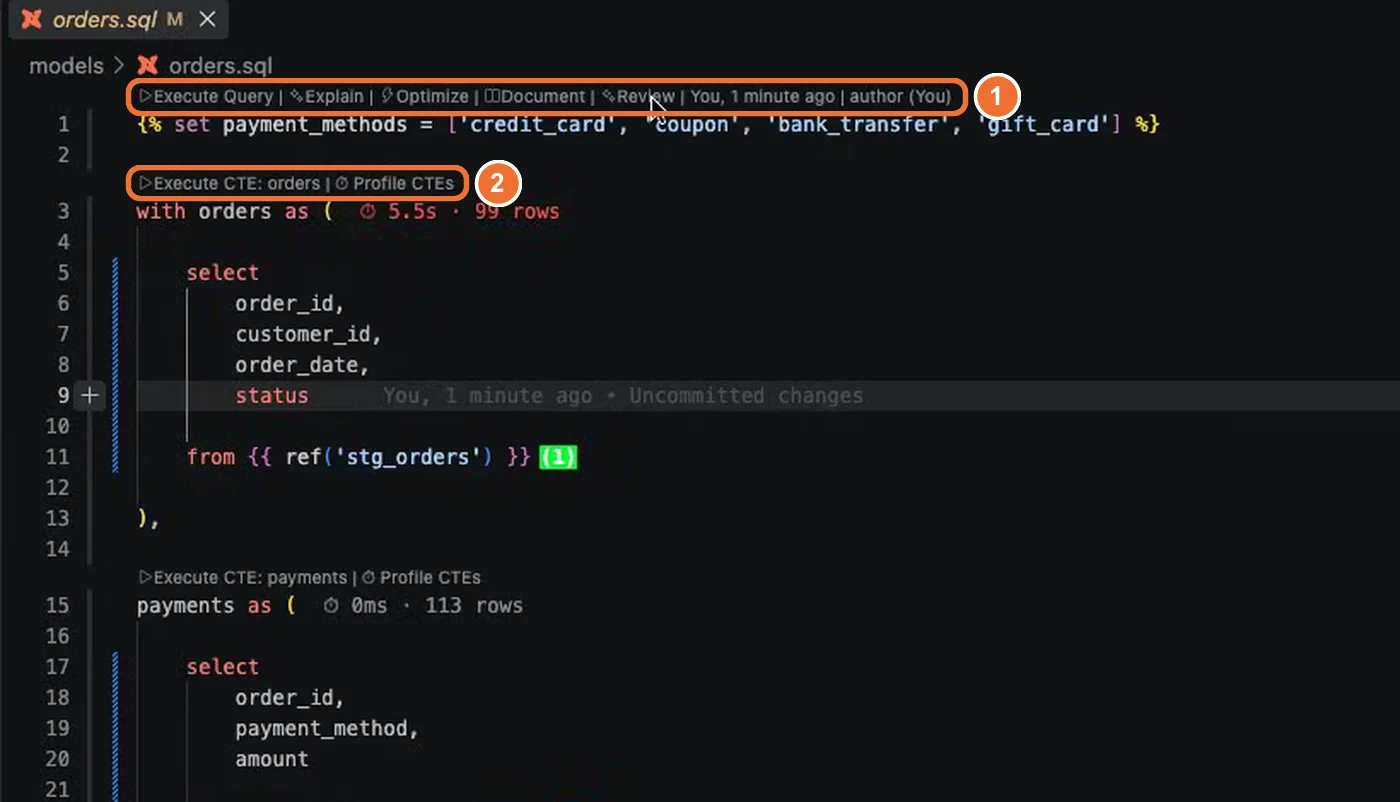
- What it is. One-click buttons in the PowerUser Plugin for dbt. Five sit above every dbt model. Execute CTE and Profile CTEs sit above each CTE.
- Who it is for. Analytics engineers handed a ticket on a model they did not write, or a dashboard that broke after a change.
- What you get. The runtime and row count of every CTE in one click, so a join that multiplies rows stands out from the rest.
A dashboard shows duplicate rows and inflated totals after a recent change. The model compiles and the tests pass. To debug a dbt model like this by hand, you pull each CTE out of the Jinja and run it alone, in order. Then you compare row counts yourself. On a long model, that takes hours.
Run One CTE Without Pulling It Out of the Jinja
Click Execute CTE above any CTE. The extension compiles the Jinja, runs the CTEs that one depends on, and shows the output of that CTE alone. You check a change to one CTE without running the whole model. After a fix, run that CTE again and compare its row count with the number you expected. The CTE preview guide covers the same flow from the docs.
Profile Every CTE to Spot the One Out of Line
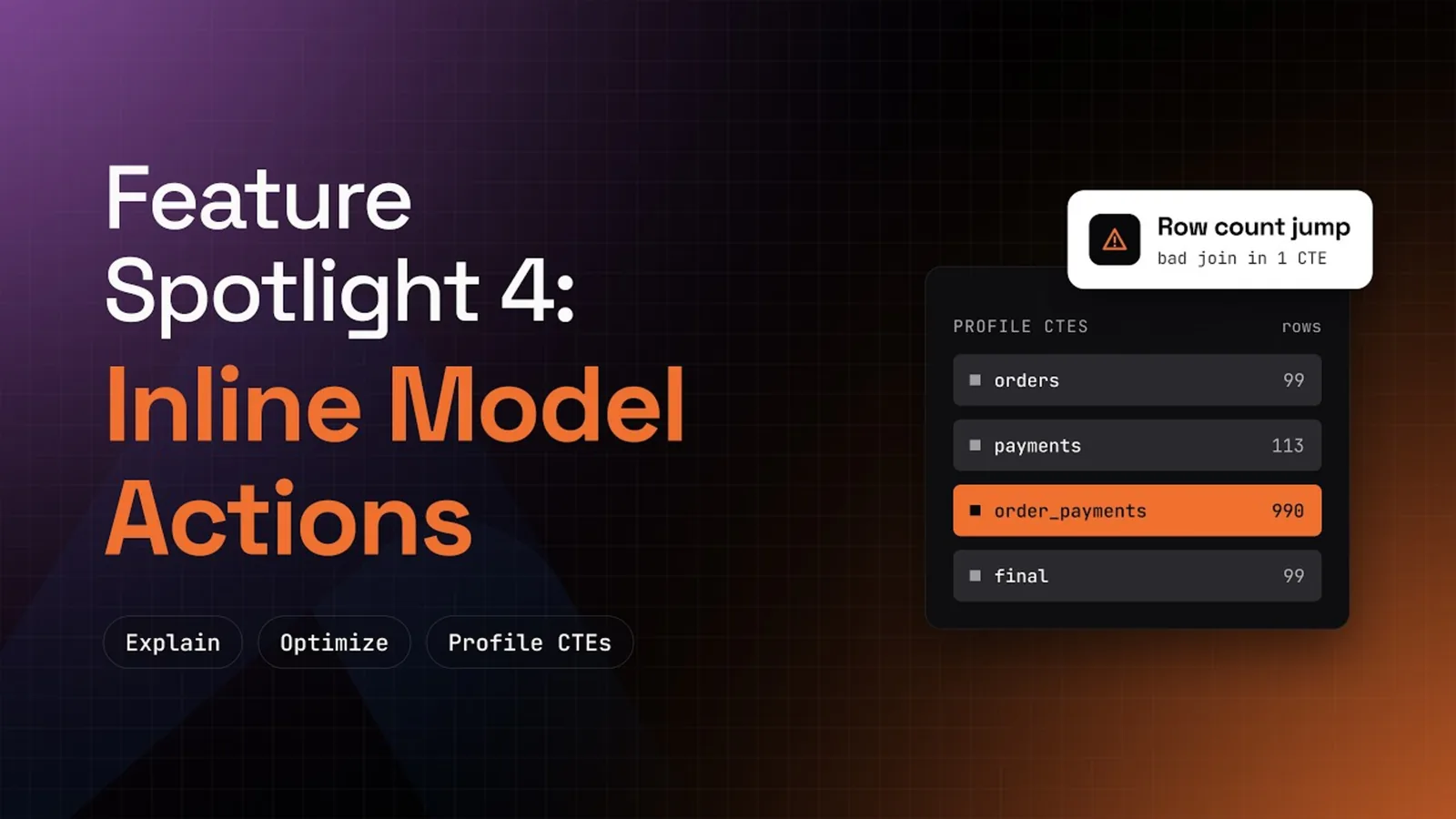
Click Profile CTEs. The extension runs every CTE one by one and writes its runtime and row count beside it. In the demo, orders took 4.4 seconds for 99 rows. The payments CTE took 644 ms for 113 rows, and order_payments took 181 ms for 99 rows.
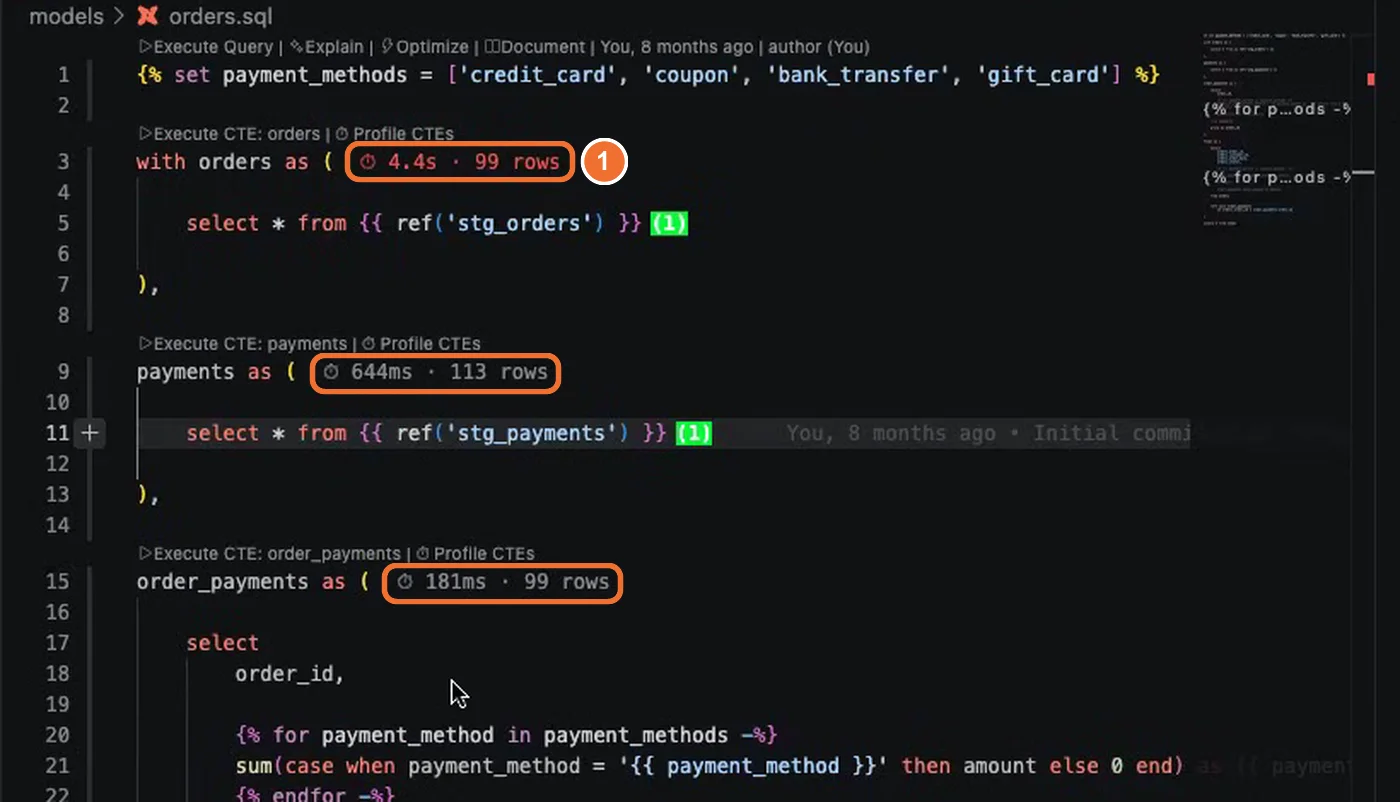
Now suppose someone changed a left join in this model to a full outer join. In the presenter's example, one CTE jumps from about 99 rows to about 990 and runs for about 10 seconds. Every other CTE in the model stays near 100 rows. That one CTE holds the bad join, and you found it in a single click. As a rule, compare each CTE with the CTE before it. A CTE that returns more rows than its inputs, right after a join, is the first place to look.
Explain or Optimize the Model Without Writing a Prompt
The model row holds four more buttons. Each one opens an Altimate Code session with the prompt already written:
- Explain walks through the model step by step, Jinja variables included, and flags anything worth a second look.
- Optimize returns ways to make the model faster or cheaper.
- Document writes the model docs in place.
- Review checks the code changes you made.
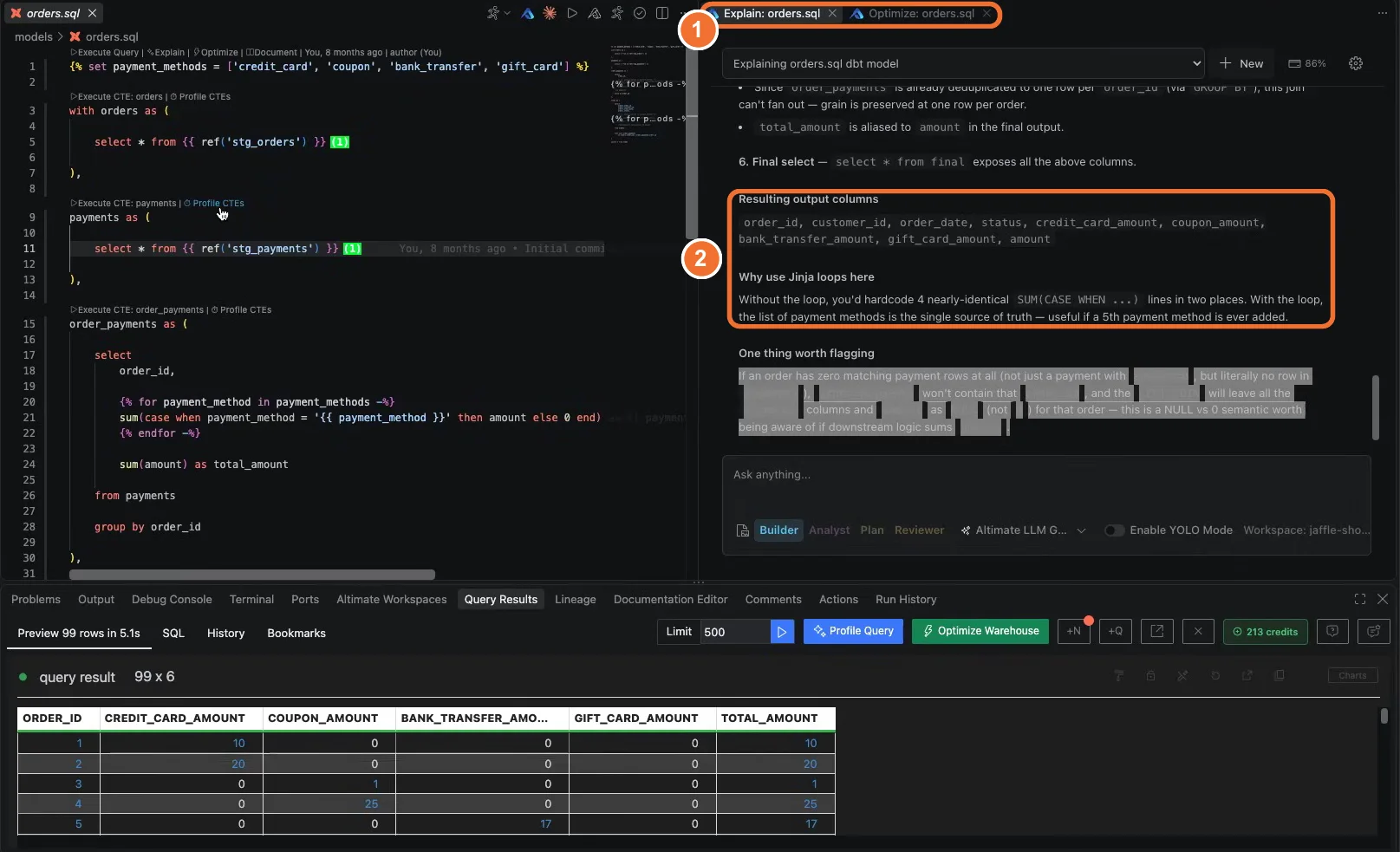
The Explain guide lists every way to start an explanation.
Install the dbt VS Code extension
Frequently Asked Questions
A code lens row sits above the first line of every dbt model. It holds Execute Query, Explain, Optimize, Document and Review. A second row above each CTE shows Execute CTE and Profile CTEs.
It runs each CTE in the model one at a time. It writes the runtime and the row count beside each CTE. A CTE whose row count or runtime is far out of line with its neighbors is the first place to look.
Profile the CTEs and compare row counts. A join that matches more rows than you expect multiplies the output, so one CTE returns far more rows than the CTE before it. In the demo, a full outer join that replaced a left join turned about 99 rows into about 990.
Execute Query runs the whole model and shows its result. Execute CTE runs one CTE and the CTEs it depends on, and shows only that CTE's output. The extension compiles the Jinja in both cases.
No. Both open an Altimate Code chat and return text, such as an explanation or a list of suggested changes. You decide what to apply to your model. You can keep asking questions in the same session.
Executing a query or a CTE works in the free extension. Explain, Optimize and the other Altimate Code actions need a free Altimate API key. They also need the Datamates extension, which installs with the PowerUser Plugin for dbt.
Yes. The PowerUser Plugin for dbt installs in Cursor from Open VSX. The same code lens buttons appear above every model and every CTE, and Profile CTEs works the same way as in VS Code.